
 GMA Brandtalk
 Tracking
 Archives

ADVERTISEMENT
Filtered By: Scitech
SciTech
Gadget Review: Lumia 535, Microsoft’s first smartphone
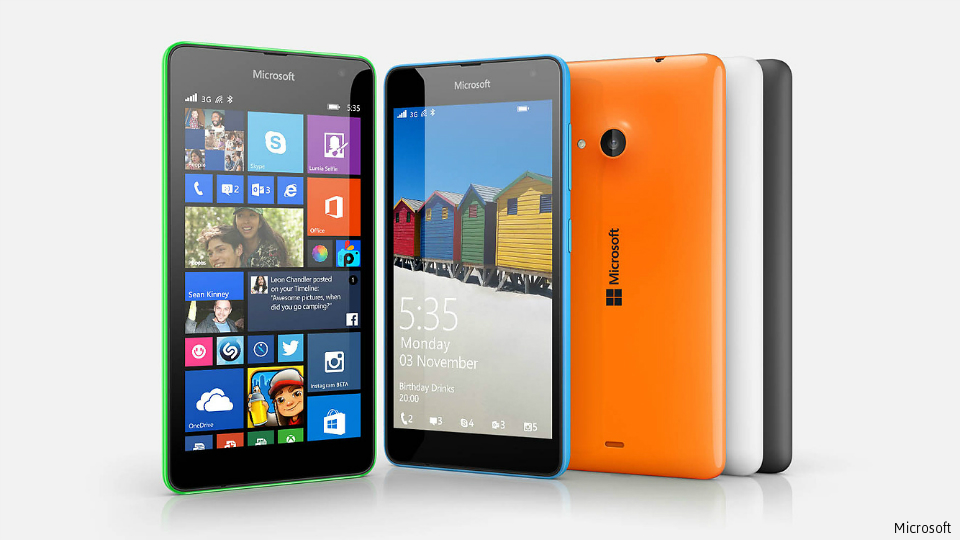
The Lumia 535 is the first smartphone that carries the Microsoft name instead of Nokia’s and going off of looks alone, it seems like a pretty standard smartphone.
It’s got a 5-inch screen and a resolution of 960x540 pixels. Official stats say it has a Snapdragon 200 quad core processor (1.2 GHz), 1 GB ram with 8 GB internal memory and 15 GB OneDrive cloud storage.
The model I was lent was blue which made it easier to spot whenever I needed to dig through my bag. Other available colors are bright orange, bright green, dark gray, black, and white.
Turning on the phone for the first time, I was led into a setup guide which involved basic stuff like preferred language settings, etc.
I’ve been wanting to upgrade my laptop to Windows 8 for a while now, so I thought that this would at least be my chance to familiarize myself with the OS. There actually wasn’t much of a learning curve—it was pretty easy to figure out my way around the phone, and I feel that this’ll hold true for most smartphone users. Swiping from right to left on the Start (home) screen will get you a list of apps in the phone. Swiping downwards will show you the quick notifications.
The battery life is pretty standard for a smartphone. It requires a charge around every four days or less, depending on what you do on the phone, how often you use it, and how low you’re willing to let the battery charge get before you decide you want to recharge it. There’s a Battery Saver function that can stretch out the remaining battery life a bit by turning off non-essential functions, like automatic e-mail sync if you’re online.
The Start screen is is made up of tiles instead of app icons. You can rearrange and resize the tiles and personalize the tile background so that they look like small puzzle pieces that make up a larger picture. Since the phone is dual SIM, each SIM gets its own Call and Message tiles. You can combine the two Message (or Call) tiles if you want to save space, though.
When I opened up some of the pre-installed apps (like Skype or Facebook), it asked if I wanted to update the app. That led me to the Windows store, where I had to create an account before I could proceed. There didn’t seem to be as many apps available for download compared to the Google Play Store.
I linked two Google accounts and a Yahoo account with the phone. The interface of both their mail apps looked like the phone’s default interface. It was also a bit difficult to navigate through the app if you were looking for specific folders—the default display showed you all of your unread e-mail, regardless if which folder it was in.
If you want to surf the Internet or search for something online, the default options are Internet Explorer and Bing. At the bottom of the screen—beside the Start button and the Back button—is the Search button which will lead you directly to Bing Search. Pressing and then holding the Start button enables you to do voice search.
Keeping track of how much time you’ve spent online is usually difficult, but there’s Data Sense app available. It shows you how many MB of data you’ve used up, and if it’s via a Wi-Fi or through mobile data. It was especially useful when I saw that I could set a cap for the maximum amount of data I was going to use.
On the Start screen, there’s a tile for the Calendar app. Calendar appointments are also displayed on the phone’s lock screen. In the Calendar app itself, you can assign a color for each separate calendar that you’ve synced with your phone and for the phone’s calendar itself. That made it easier for me to tell apart if the upcoming event was work-related or personal, for example.
The camera is pretty basic—5 megapixels with autofocus and an option for flash. There’s a front camera with the same available resolution. The photo quality isn’t that good unless you have decent lighting but it does offer a pretty neat panorama app.
All in all, the Lumia 535 is a pretty decent no-frills smartphone. If you’re looking for practicality, it performs well on basic functions like texting and calling, and the OneDrive app means that you can access your Word and Excel documents while you’re on the go. — TJD, GMA News

