
 GMA Brandtalk
 Tracking
 Archives

HP's Deskjet GT5820 is a decent printer marred by wonky wireless connectivity
A printer is just that, right? Maybe, and then some. Here's why the HP Deskjet GT5820 All-In-One Printer may be worth a second or even third look—and why it might not.
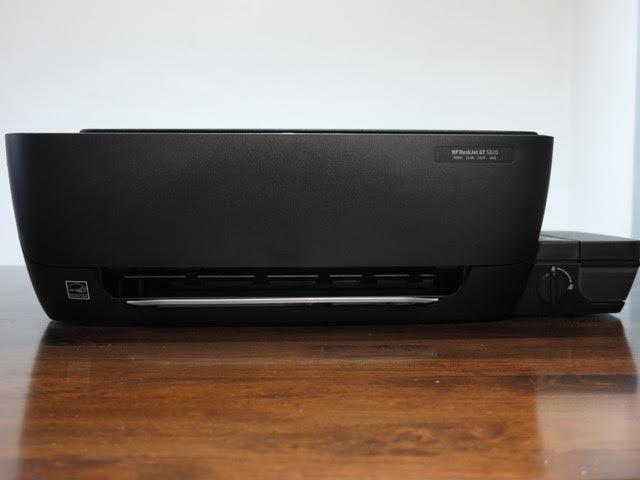
When you open the box, you are presented with a glossy black machine. For a machine that does a lot of thing, the printer has a slim profile. It is light and putting it from one place to another is a synch.
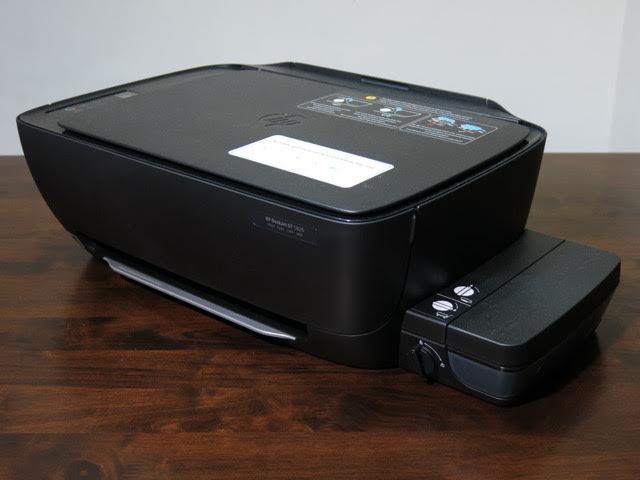
There are just two cables inside the box: one to power the thing and the other to connect to your computer. And that's all you need actually. Once you install the HP app in your computer, printing is a breeze.
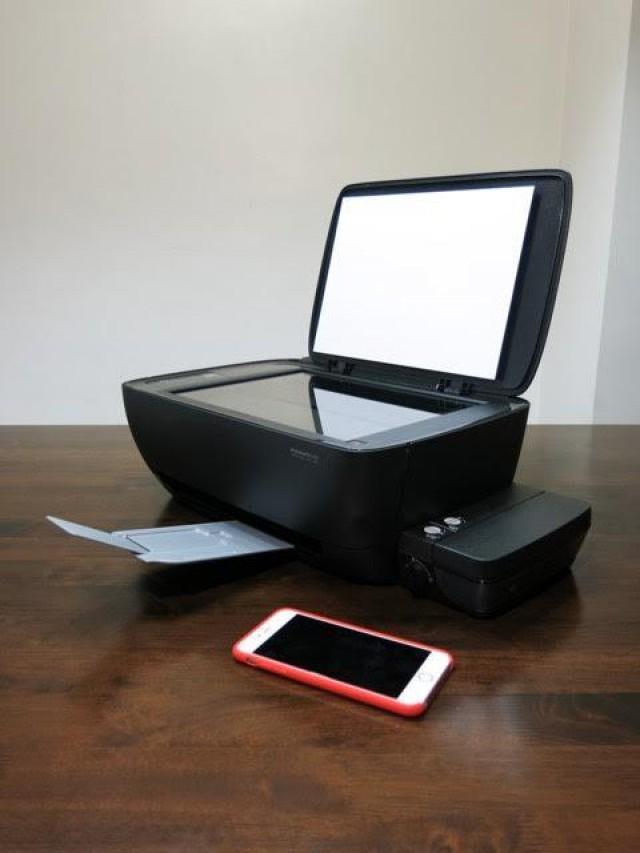
There is a flatbed on top of the GT5820 and you use this for scanning and photocopying documents. There are buttons on the left side of the machine and you can actually photocopy your papers without connecting the printer to a computer. It is that convenient.
[Aside: The wife and I used to have an all-in-one printer that has a fax machine built in. I thought this printer would also have it but, the more I thought about it, the more I realized that nobody uses a fax machine anymore, much less a landline! So kudos to HP for not including a feature in this printer that no one would actually use...]
The printer also has a WiFi antenna and you use this, no not to surf the web, but to print your stuff wirelessly. You can print from your computer, tablet and, yes, from your mobile phone. You just need to connect your device to the WiFi server in the computer and you will be good to go. I actually found it more convenient to print from my iOS devices directly than from my Macbook Pro, which was a source of wonder: you need to have the related HP app installed in your computer while you won’t need one to print from my iPhone.
With the WiFi feature, I just used the USB cable to connect the printer to my computer once.
The GT5820 printer has a new ink-well system. You get four bottles of ink: cyan, magenta, yellow and key (black), your typical CMYK color combination. You pour the ink in the corresponding well via a spill-proof system and there is a demarcation line which will tell you the maximum level of the inks. Then, the ink is transferred to the printer head when you print your files or photos. With this system, you can replace the colors individually: you don’t need to throw away your whole ink cartridge just because, say, blue is your favorite color and this is the color to always go away first. The magenta and the yellow, for the GT5820, will not be wasted! Just buy the color blue (or yeah, cyan, if you want to get technical).
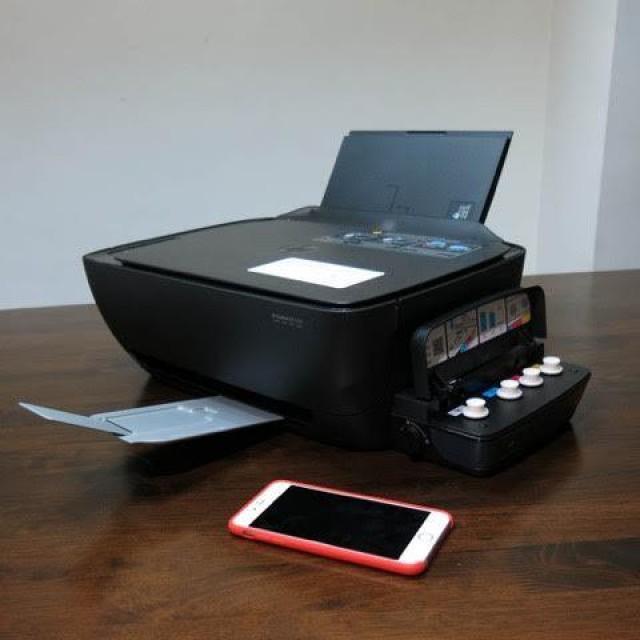
And as far as photos are concerned, the GT5820 is great at them. First, I was greatly impressed by the speed with which my photos were printed. Secondly, the quality of the color rendition on the photo paper is superb. The photos appeared exactly the way I wanted them. For me, these two categories are the best ways to check whether you have a nice printer or a mediocre one.
The HP GT5820 is a very nice one.
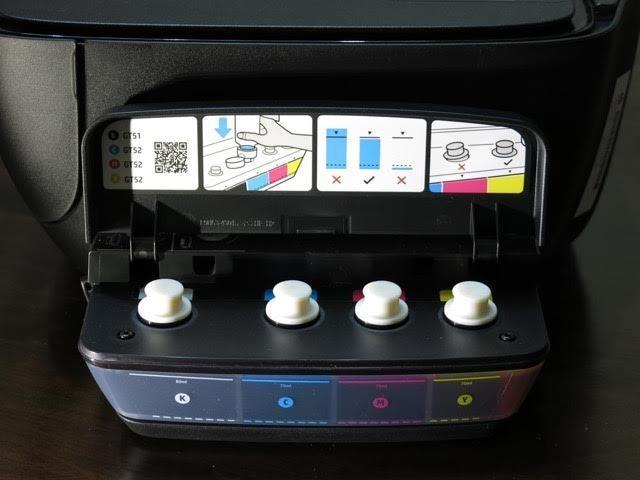
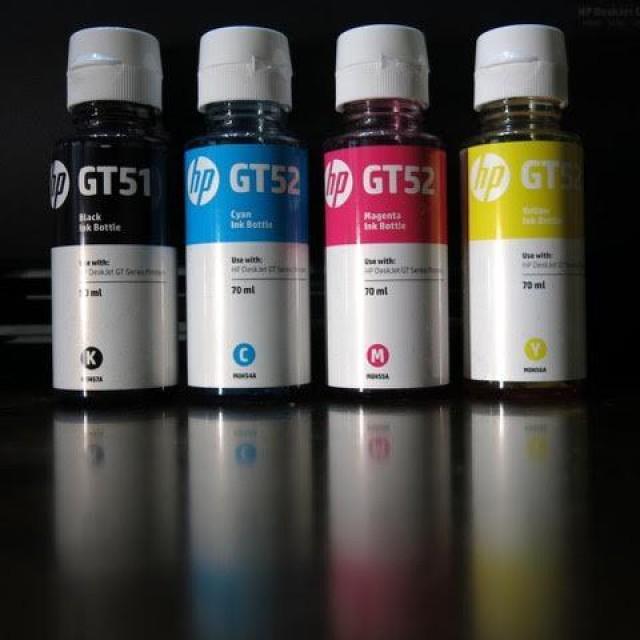
And despite printing a lot of photos and documents in maximum quality, there is still plenty of ink left when I returned the printer. That is a big plus for me.
A con about this printer happens to be the wireless printing. I could not, for the life of me, change the settings of the wireless setup. For example, for the entire time the printer’s with me, I could not change the password of the WiFi network, so I just left it open. What’s wrong with this, you ask? Well, since it is open, anyone who accessed the printer through WiFi will be able to print their stuff on the printer. That would be funny but it would be a waste of your ink and paper.
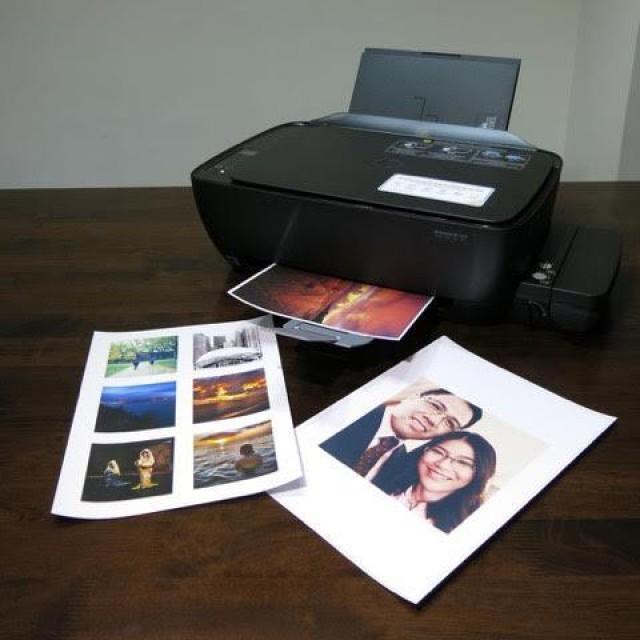
Otherwise, the printer is very nice and it would serve well as a personal printer. It would serve well for your home office or for your small business. Just make sure you turn off the WiFi when you are done printing. — TJD, GMA News

